Running Update Normalization Views Commands
Note: This functionality is only available in systems licensed for FULL mode.
 Use the Normalization Views button to access the Update Normalization Views command that triggers the service to update the normalization views of data in your system. Normalization views are defined through the Admin menu, and referenced by data normalization commands, so they must be configured prior to running the command. Multiple normalization views can be created, in order to facilitate the publishing of data to the largest possible audience.
See Data Normalization and Normalization Views in the CygNet Measurement Concepts topic for a more detailed discussion of normalization views.
Once the normalization views have been configured, data normalization commands can be run to aggregate and normalize data (including time span, unit set, base conditions, and timestamp alignment, etc.) into a common "view" with which to retrieve, view, and report data. Run an Update Normalization Views command to trigger the service to build the normalization tables and/or post the normalized data out to SCADA points, based on the specified normalization view (and optionally based on specified dates).
Generally, the Update Normalization Views command is run in one of two ways.
- Specify the name of the normalization view (without start and end dates) - This is the basic method of requesting a normalization view update. The first time you run the command configured in this manner, it will update the normalized view for all eligible data that has undergone changes (including changes, polls, edits, recalculations, migrations, etc.) in the last 24 hours. Subsequent runs of the command will update the normalized view for all eligible data that has undergone changes since the previous request.
- Specify the name of the normalization view and provide both start and end dates - This is an optional method of requesting a normalization view update. You can specify start and end date parameters (both must be used for the request to succeed) to update a normalization view for data between the specified dates. Date parameters must be in Contract time (C).
Data Normalization commands configured in either manner can also be initiated by scheduling the command in the Master Scheduling Service (MSS) in CygNet Explorer, or by scripting. Scheduling the command can ensure that updates occur at a regular interval, providing efficient use of your system resources.
See FMS Commands and Update Normalization Views for more information about this command.
See Scheduling FMS Command Tasks in the MSS for more information about scheduling commands.
See FMS ActiveX Controls and CxHmiFms for more information about using commands via FMS ActiveX controls on CygNet Studio or CygNet Vision screens.
See CxFms for more information about scripting commands.
Referencing Normalization Views
Since a data normalization command update data based on existing normalization views, the referenced normalization view must exist first. Normalization views are created via the Admin menu. See Configuring Normalization Views for more information about adding or deleting normalization views.
Note: Normalization views cannot be edited, as they are read-only after creation. Instead, create new normalization views as needed.
Configuring a Data Normalization Command
Once normalization views exist, you can configure an Update Normalization Views command referencing that view. Use the following procedure to configure and optionally run the Update Normalization Views command.
To Configure and Optionally Run an Update Normalization Views Command
- On the Commands menu, click Normalization Views to access the Run FMS Command dialog box for the Update Normalization Views command.
|
Run FMS Command |
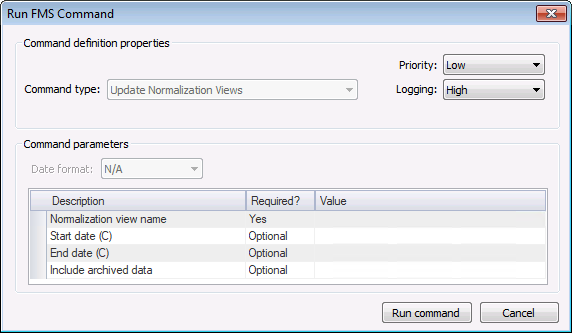
- Define the command definition properties.
- Select a processing Priority from the drop-down menu. Options include Low, Medium, High, User, and Admin.
- Select a Logging level from the drop-down menu, to determine the level of logging details reported when viewing command logs. Options include Low, Medium, and High. See Viewing Command Logs for more information.
- Define the command parameters. The parameters for the Update Normalization Views command are described in the Command parameters box, which includes the Description, a Required indicator, and the Value field. Set the value for each required and each selected optional parameter, as indicated in its Value field.
Note: Normalization views cannot be edited, so if the desired normalization view does not yet exist, it must be created before you can run the command. The properties and process variables for the Update Normalization Views system command are too extensive to be described in the Command parameters box, so they are configured through the Options button on the Admin menu. See Configuring Normalization Views for more information.
- Click Run Command.

Command Definition Properties
The following command definition properties apply to Update Normalization Views commands.
| Property | Description |
|---|---|
|
Command type |
For system commands, this property will be read-only and will display the selected command type. See FMS Commands for more information about command types. |
|
Priority |
Select a processing queue Priority for the command from the drop-down menu. Options from least to greatest priority are as follows.
Default value is Low level processing queue priority. |
|
Logging |
Select a Logging level for the command results from the drop-down menu. Options are as follows.
Default value is Low level logging when scheduling a command in the MSS. Default value is High level logging when creating or running an ad-hoc command in FMS Explorer. |
Command Parameters
The following command parameters apply to Update Normalization Views commands.
| Description | Type | Required | Value |
|---|---|---|---|
|
Normalization view name |
String |
Yes |
Type the name of the normalization view to update (or a partial name plus wildcard values). Wildcard values * (multiple character) and ? (single character) are supported. |
|
Start date (C) |
Date |
Optional |
Used only in conjunction with End date (C) If used, select the starting date of the time range for which to update the normalization view, in Contract time. Click OK. If not set, default value is as described above. See Selecting Date and Time for more information. |
|
End date (C) |
Date |
Optional |
Used only in conjunction with Start date (C) If used, select the ending date of the time range for which to update the normalization view, in Contract time. Click OK. If not set, default value is as described above. See Selecting Date and Time for more information. |
|
String Enum |
Optional |
If used, sets whether or not to include archived data when normalizing the specified data. Options are Yes or No. Note: If selected (set to Yes), archived records will also be accessed; expect a corresponding time delay for processing. |

